
This section explains how to install, license and remove the Easysoft ODBC-ODBC Bridge (OOB) on supported Windows, Mac OS X and Unix platforms.
The Windows and Mac OS X installation can be carried out by anyone with local administrator privileges for the target machine.
The Unix installation assumes you are, or have available for consultation, a system administrator.
There are three ways to obtain the Easysoft ODBC-ODBC Bridge:
Select Download from the Easysoft ODBC-ODBC Bridge section of the web site and then choose the platform release that you require.
First time visitors must complete the new user form and click Register. Note that your personal Internet options may require you to login and click Continue if you have previously registered.
Change to the pub/odbc-odbc-bridge directory and then choose the platform release that you require.
The Easysoft ODBC-ODBC Bridge consists of the OOB Client and the OOB Server.
There are shared files which are needed to install either of these components and there are documentation and example files which you are recommended to keep for future reference.
Unix distributions also include the third-party unixODBC driver manager (see unixODBC).
As the OOB Client and the OOB Server will typically be installed on different machines with different operating systems, you will need to perform the basic installation procedure twice, probably in different environments. You should first decide which part of the Easysoft ODBC-ODBC Bridge you are installing on which machine.
It is also important to consider that it may be necessary for Easysoft to make a change to the protocol used between the client and server. The following table shows which versions are guaranteed compatible with a 'Y' and those versions which may not work together with a 'N'. The 'n' is the major number and the 'm' is the minor number as in an OOB release n.m.b (b, build numbers are not relevant).
| Client version | n.m | n.m+1 | n+1.m |
| n.m | Y | Y | N |
| n.m+1 | N | Y | N |
| n+1.m | N | N | Y |
|
Client version 1.0 will work with all Servers up to version 2.0 even though the table indicates otherwise. |
Only the first two fields constitute the version number. The last digit is known as `build number' and does not affect compatibility.
|
If you connect a Client and Server with mismatched protocols, the Easysoft ODBC-ODBC Bridge will detect and report this immediately. |
The name of the Easysoft ODBC-ODBC Bridge distribution file varies from platform to platform, but is of the form:
where "x" is the major version number, "y" is the minor version number and "z" is the build index.
"platform" will vary depending on the operating system distribution you require and you may come across files of the form:
within specific Unix platforms, where "platform-variation" refers to alternative versions available for a single platform (e.g. -mt for thread-safe versions).
|
Select the highest release available for your platform within your licensed major version number (installing software of a different major version number requires a new Easysoft license). |
Unix filenames may also be suffixed with .gz for a "gzipped" archive, .bz2 for a "bzip2ed" archive, or .Z for a "compressed" archive.
You can now download a file and begin the installation process.
|
If you are upgrading an OOB Server, you will need a new license from Easysoft to use the new Server. New licenses are available on request to customers with a support contract. For more information, contact license@easysoft.com. |
Refer to the section relevant to your platform to continue:
|
To run the Easysoft ODBC-ODBC Bridge client on Windows 9x, you need WinSock2. |
1. Execute the file distribution that you downloaded in Obtaining the Easysoft ODBC-ODBC Bridge.
|
Please shut down other Windows programs before installing. In particular, Microsoft Outlook can cause the installation routine to pause for several minutes when you start it. |
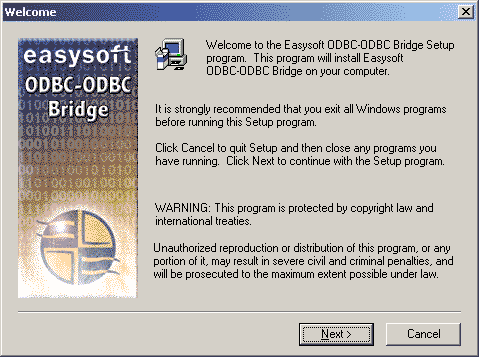
There will be a short delay while setup prepares the wizard to guide you through the rest of the install procedure before the Welcome dialog box is displayed:
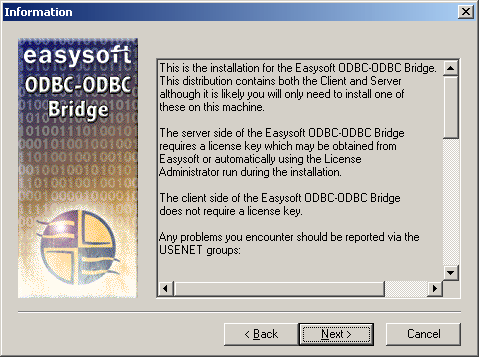
The Information dialog box displays details about licensing and the components which are installed with the Easysoft ODBC-ODBC Bridge:
The User Information dialog box is displayed:
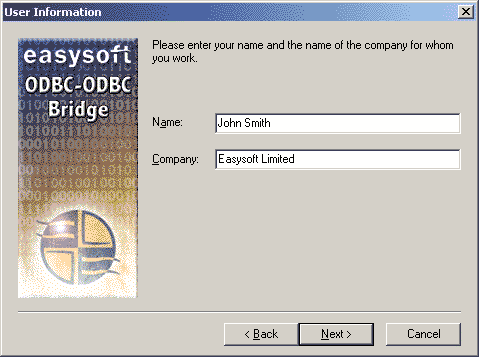
4. Enter your name and the name of your company. Then click Next to continue.
|
The name and company that you enter here will become the defaults in the License Manager later on. |
The Choose Destination Location dialog box is displayed, where you are asked to choose where to install the Easysoft ODBC-ODBC Bridge files:
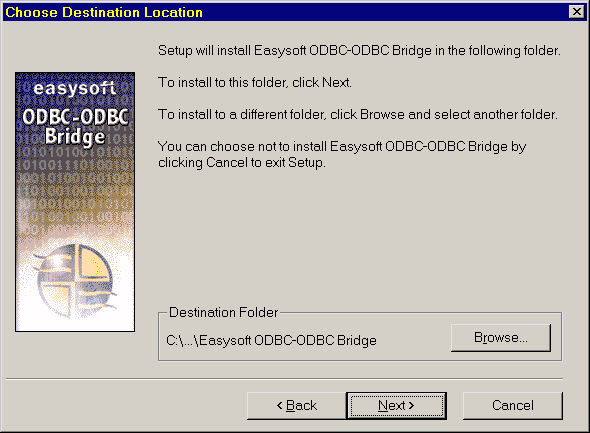
5. Click Next to install the application into the default directory location:
C:\Program Files\Easysoft\Easysoft ODBC-ODBC Bridge.
Click Browse and select an alternative directory location for the installation, before clicking Next.
The Choose Setup Type dialog box is displayed:
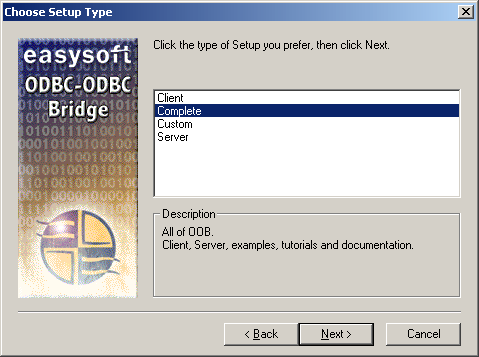
7. Select Client to install the OOB Client only. This Setup type also installs the OOB documentation, tutorials and examples. The OOB Client is required if you need to access ODBC data sources on remote machines.
Select Complete to install the OOB Client and Server, documentation, tutorials and examples. This Setup type installs all OOB components. (Recommended for developers and administrators.)
Select Custom to choose which components to install. This Setup type is useful if you want to save disk space by not installing components such as the OOB documentation.
Select Server to install the OOB Server only. This Setup type also installs the OOB documentation and tutorials. The OOB Server is required if you need to access ODBC data sources on this machine from remote machines.
The Installation Options dialog box is displayed:
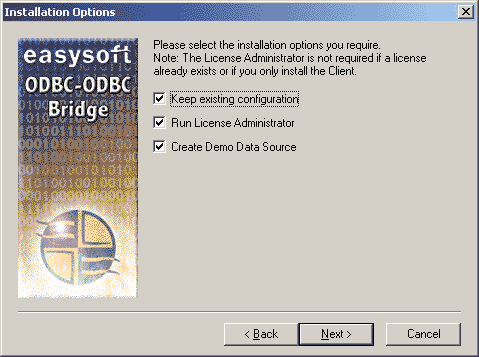
These options are ticked when they are selected.
If you selected Complete, Client or Server, go to step 10.
If you selected Custom, a checklist of items to install is displayed:
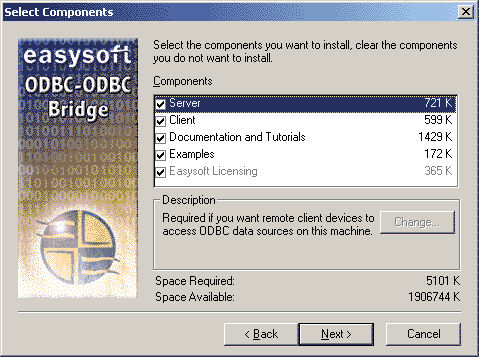
9. Select the items to install and click Next to proceed.
10. The Software License Agreement dialog box is displayed:
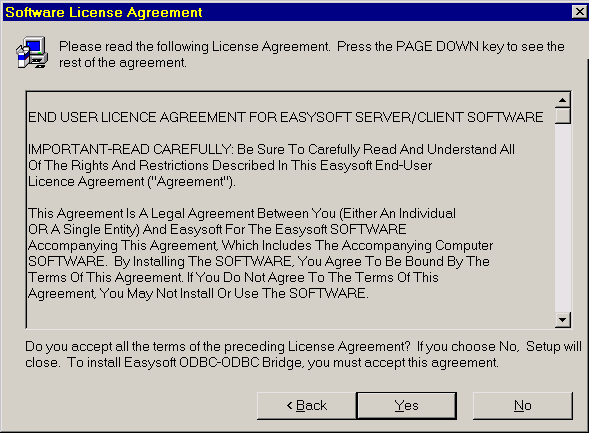
The license agreement varies depending on whether or not you chose to install the OOB Server or the OOB Client only:
11. Click Yes to continue with the installation if you accept the License Agreement.
If you do not agree with the Easysoft License Agreement then click No.
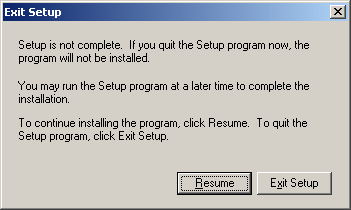
The Exit Setup dialog box is displayed and you may choose to resume or exit the installation.
12. If you chose not to install the OOB Server, go to step 16.
If you did not check the Keep existing configuration option on the Installation Options dialog box or if this is a new installation, the OOB Server Configurable Parameters dialog box is displayed:
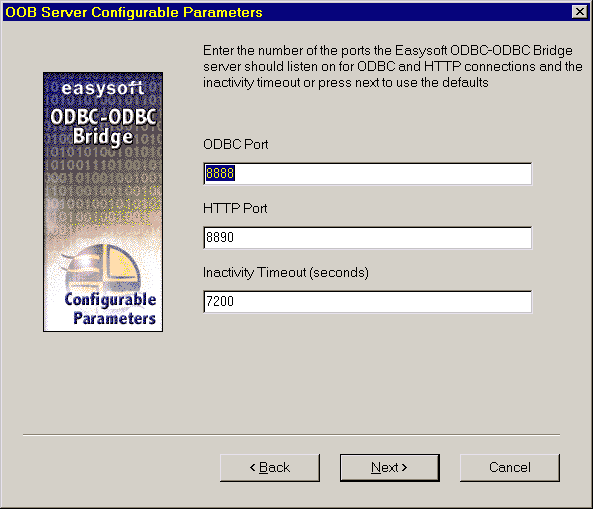
The OOB Server Configurable Parameters dialog box contains three settings:
Accept the default values unless you have a port conflict or have some reason to change the timeout (see Choosing another Port or Service Name) and click Next.
The OOB Server Administrator dialog box is displayed:
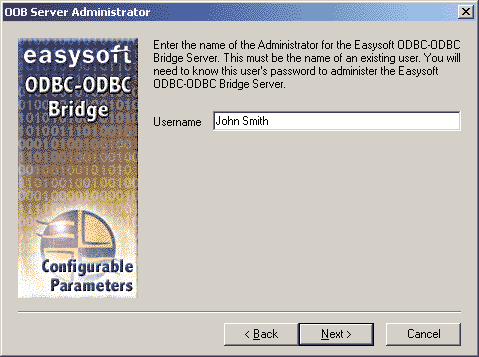
13. Enter the login name of an existing Windows user account as the Server Administrator user name.
You also need to know the password for this user, because it will be required when you run the Web Administrator (see The Web Administrator).
To grant group access to the Web Administrator, you may wish to create a specific "Administrator" user.
To allow anyone to have access to the Web Administrator, leave the Username field blank to remove the requirement to log in.
|
You should consider carefully whether you wish to allow anyone on your network to have access to the Web Administrator in order to change Easysoft ODBC-ODBC Bridge settings. |
14. Enter your chosen administrator user name and click Next.
The Initial Security dialog box is displayed:
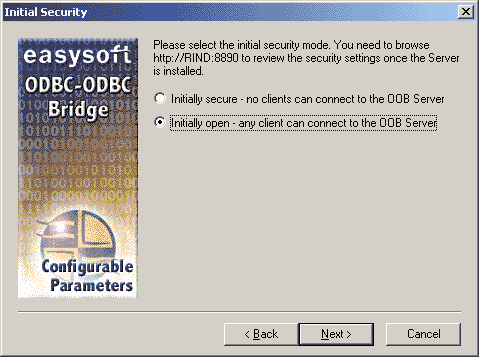
The default value will allow any user to access the OOB Server.
The "Initially secure" option places an asterisk on the Denied Access section of the Web Administrator Security page, which will cause all OOB Client connections to be rejected.
This should be removed after installation and the clients that require access to the OOB Server specified individually (see The Security Screen).
16. The Start Copying Files dialog box is displayed, containing a summary of the settings you have chosen:
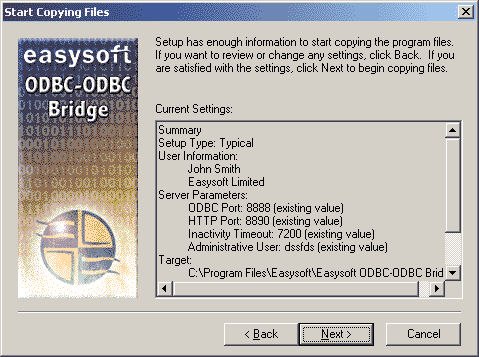
There is now a short wait while the relevant Easysoft ODBC-ODBC Bridge components are copied and configured.
If you chose not to install the OOB Server, then you do not need a license and the installation is complete.
The install program starts the Easysoft License Manager (explained fully in the Licensing Guide), because you cannot use the OOB Server until a license is obtained.
The following types of license are available:
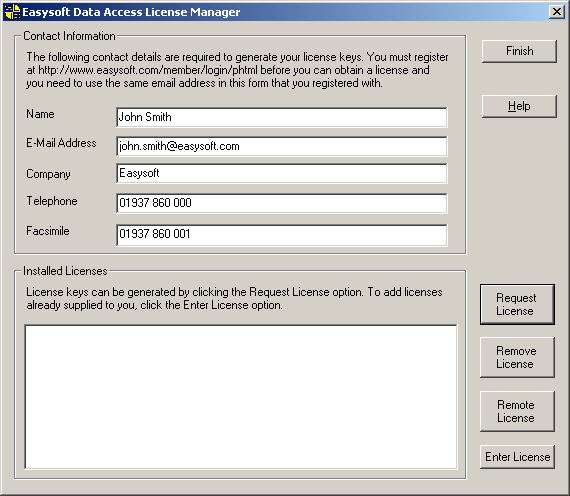
18. Enter your contact details.
You MUST enter the Name, E-Mail Address and Company fields. The e-mail address that you enter here must be the same as the one that you registered with.
The Telephone and Facsimile fields are important if you require Easysoft to contact you by those methods.
You are asked for a license type:
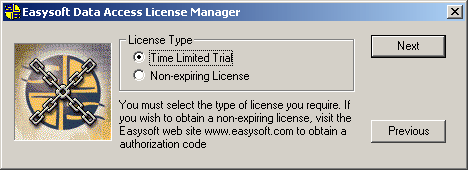
20. For a trial license click Time Limited Trial and then click Next.
The License Manager asks what software you are licensing:
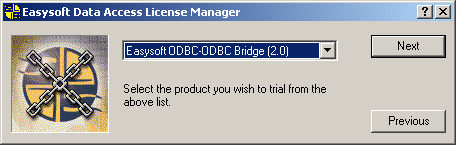
Select your required version of the Easysoft ODBC-ODBC Bridge from the drop-down list and then click Next.
If you have obtained an authorization code for a purchased license, select Non-expiring License and then click Next.
The License Manager requests your authorization code:
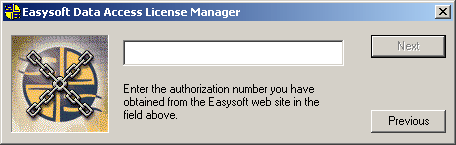
Enter the authorization code and then click Next.
21. The License Manager displays a summary of the information you entered and allows you to choose how to apply for your license:
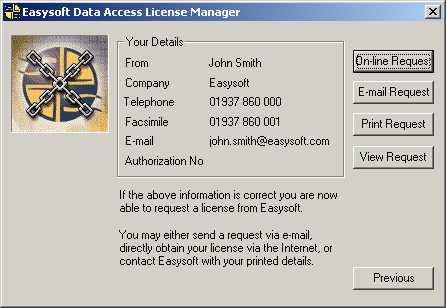
Choose On-line Request if your machine has an internet connection.
The License Manager then sends a request to the Easysoft license server to activate your license key automatically. This is the quickest method and results in your details being entered immediately into our support database. You can now go to step 22.
|
Only your license request identifier and contact details as they are displayed in the main License Manager screen are sent to Easysoft. |
The remaining three options (Email Request, Print Request and View Request) are all ways to obtain a license if your machine is offline (i.e. does not have a connection to the internet).
Each of these methods involves providing Easysoft with information including your machine number (a number unique to your machine) and then waiting to receive your license key.
Instead of emailing, faxing or telephoning your details to Easysoft, you can enter them directly onto the Easysoft web site and your license key will be emailed to you automatically.
To use this method, click View Request to display your machine number and then go to http://www.easysoft.com/sales/autolicense.phtml in a web browser. Choose the type of license you require, enter your machine number, click Continue and your license key will be emailed to you.
|
You can copy your machine number from the View Request dialog box using CTRL-C and then paste it into the License Generator by using CTRL-V. |
When you receive the license key, you can activate it either by double-clicking the email attachment or by clicking Enter License on the License Manager main screen and pasting the license key into the dialog box.
22. A message tells you how many licenses have been added.
|
If you use the Email Request option, the license key is emailed to the email address as displayed on the License Manager screen, not the from: address of your email. |
For more information about the licensing procedure refer to the Licensing Guide.
|
If you add a new license, the OOB Server service needs to be restarted in order to access the new details. During Setup, the OOB Server service is restarted automatically after a license has been added. If you add a license outside of Setup, you need to restart the service manually. For more information about restarting the OOB Server service, see To Start or Stop the Service in Windows. |
23. Click Finish in the License Manager to return to the install program.
The Post Install Message dialog box explains where you can find the Easysoft ODBC-ODBC Bridge documentation:

24. Click Next when you have read the Post Install Message.
The Setup Complete dialog box is displayed:
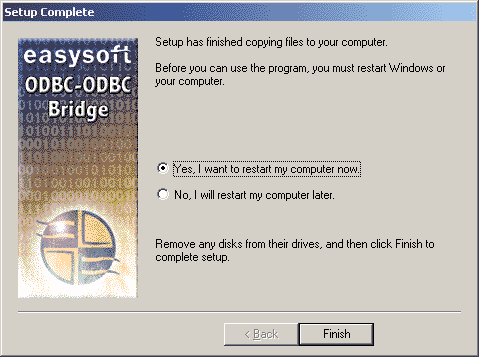
25. If InstallShield couldn't replace shared Easysoft .dll or .exe files because they were in use, you will be prompted whether you want to restart your PC. If this happens, you must restart your PC before using the Easysoft ODBC-ODBC Bridge.
Easysoft provide a small demonstration client program which can demonstrate the OOB Client in action by connecting across the internet to the server demo.easysoft.com. Refer to The Demo.exe Client for more details.
You should have an Easysoft program group with links to additional documentation, the product newsgroup and the Web Administrator.
This section explains how to remove the Easysoft ODBC-ODBC Bridge from your system.
|
If you decide to remove a previous installation before upgrading to a new version a large amount of existing OOB Server configuration data may be deleted (machine access control details, for example). |
1. In Control Panel open Add or Remove Programs.
A list is displayed of applications that can be automatically removed.
2. Select Easysoft ODBC-ODBC Bridge and click Change/Remove.
3. Click Yes to confirm that you wish to remove the Easysoft ODBC-ODBC Bridge and all its components.
The system begins to remove all the components. If shared components seem not to be required, you will be prompted to decide whether or not to delete them.
4. If you feel confident with the registry (i.e. your system has had relatively few programs installed and removed) you should click Yes or Yes to All to continue.
If you have any doubts (e.g. uninstall procedures have failed in the past) you should click No or No to All.
The uninstall process removes the Easysoft ODBC-ODBC Bridge components from your system.
5. On completion, click OK to go back to the Control Panel Install/Uninstall window.
6. The uninstall process is complete.
Any licenses you obtained for the Easysoft ODBC-ODBC Bridge and other Easysoft products are held in the Windows registry.
When you uninstall, your licenses are not removed so you do not need to relicense the product if you reinstall or upgrade.
These instructions show how to install the Easysoft ODBC-ODBC Bridge on Unix platforms.
The installation script has a minimal set of requirements:
grep, awk, test, cut, ps, sed, cat, wc, uname, tr, find, echo, sum, head, tee, id
If you are missing any of these commands they can generally be obtained from the Free Software Foundation (http://www.fsf.org). As some machines have a broken tee command, the distribution comes with a tee replacement.
Easysoft recommend you install all OOB components as the root user.
This OOB distribution contains:
You may install the Client, the Server or both. However, most installations will install the Client on one machine and the Server on another machine. If you only want to access ODBC databases through drivers on remote machines from this machine, you only need the Client on this machine and the Server on the machine where your remote ODBC driver is located.
If you have ODBC drivers on this machine (e.g. Easysoft's Tetra/CS3, D-ISAM or Zortec ODBC drivers) which you want to access over the OOB from other machines you should install the server too.
A few examples help to illustrate this:
1. Accessing MS SQL Server on Windows from a UNIX machine.
You should install the OOB Client on the UNIX machine.
You should install the OOB Server on a Windows machine which has a MS SQL Server ODBC Driver (it does not have to be the machine running MS SQL Server).
2. Accessing D-ISAM files on UNIX from Windows
You should install the OOB Client on the Windows machine which needs access to your D-ISAM files.
You should install the OOB Server on your UNIX machine. In this particular case you will need an ODBC driver for D-ISAM on your UNIX machine (like Easysoft Data Access for D-ISAM).
You will need an ODBC Driver Manager to use the OOB Client from your applications or for the OOB Server to access your ODBC drivers on this machine. OOB distributions contain the unixODBC Driver Manager (see http://www.unixodbc.org). Most (if not all) UNIX applications and interfaces (e.g. Perl DBD::ODBC, PHP, Python etc) support the unixODBC Driver Manager.
You do not have to install the unixODBC Driver Manager in this distribution as you can use an already installed unixODBC (whether that was installed with another Easysoft product, from your Operating System Vendor or even if you built it yourself). However, Easysoft ensure the unixODBC distributed with Easysoft ODBC Drivers has been tested with our drivers so we recommend you use it.
If you choose to use an already installed unixODBC Driver Manager the installation script will attempt to locate it. The installation looks in the standard places but if you have installed it in a non-standard location you will need to provide that location to the installation script when it prompts you. The installation primarily needs unixODBC's odbcinst command to install drivers and any data sources.
This installation needs a location for the installed files. The default is /usr/local.
At the start of the installation you will be prompted for an installation path. All files are installed in a subdirectory of your specified path called "easysoft." For example, if you pick the default of /usr/local, the OOB will be installed in /usr/local/easysoft and below.
If you choose an install path different from the default then the installation will try to symbolically link /usr/local/easysoft to the easysoft in your chosen path. This allows us to distribute binaries with built in dynamic linker run paths. If you are not root or the path /usr/local/easysoft already exists and is not a symbolic link this will fail. For information about how this may be corrected manually, see Post installation steps for non-root installations. You should note that you cannot license Easysoft products until /usr/local/easysoft exists either as a symbolic link to your chosen install path or as the install path itself.
This installation installs files in subdirectories of the path requested at the start of the installation. Depending on what is installed, a few changes may be made to your system as outlined below:
1. If you choose to install the OOB Client into unixODBC then unixODBC's odbcinst command will be run to add an entry to your odbcinst.ini file. You can locate this file with "odbcinst -j" (odbcinst will be in /usr/local/easysoft/unixODBC/bin if you are using the unixODBC that comes with OOB.)
The entry for OOB will look similar to this:
Description = Easysoft ODBC-ODBC Bridge
Driver = /usr/local/easysoft/oob/client/libesoobclient.so.1
Setup = /usr/local/easysoft/oob/client/libesoobsetup.so
On some platforms, the OOB Client is distributed as two separate drivers, a thread-safe one requiring pthreads (OOB_r) and one which is not thread-safe (OOB) and does not require pthreads. If this distribution contains the thread-safe driver, an additional driver will be added to your odbcinst.ini file:
Description = Easysoft ODBC-ODBC Bridge (MT)
Driver = /usr/local/easysoft/oob/client/libesoobclient_r.so.1
Setup = /usr/local/easysoft/oob/client/libesoobsetup.so
For information about removing these drivers, see Removing from unixODBC.
2. If you choose to add the demo data source to unixODBC, an entry will be added to your SYSTEM odbc.ini file. You can locate your SYSTEM odbc.ini file using odbcinst -j. The entry will look similar to this:
Driver = OOB
Description = Easysoft ODBC-ODBC Bridge demo data source
SERVERPORT = demo.easysoft.com:8888
For information about removing this, see Removing from unixODBC.
If you had an OOB Server already installed on a machine when you installed the OOB Client, you would have been given the opportunity to test connection to that Server and enter all the details required to define this local data source tailored for your Server.
Once the test is successful, you will be asked to provide a data source name and whether you want this added to your SYSTEM odbc.ini file. The entry added will look like the one shown above in 2.
1. If you installed the OOB Server and chose to run it under (x)inetd the installation will:
a) add a service called esoobserver (or whatever you chose to call it) to your /etc/services file.
b) update your inetd configuration. For a description of which files are affected, see Removing from inetd and Removing from xinetd.
On operating systems where the dynamic linker has a file specifying locations for shared objects (Linux, FreeBSD), the installation will attempt to add paths under the path you provided at the start of the install to the end of this list.
On Linux, this is generally the file /etc/ld.so.conf.
On FreeBSD, this is generally the file /etc/defaults/rc.conf.
Each Easysoft distribution contains common files shared between Easysoft products. These shared objects are placed in /usr/local/easysoft/lib. When you run an installation, the dates and versions of these files will be compared with the same files in the distribution and only updated if the files being installed are newer or have a later version number.
You should ensure that nothing on your system is using Easysoft software before starting an installation because on some platforms, files in use cannot be replaced. If a file cannot be updated, you will see a warning during the installation. You may review all warnings after the installation in the file called "warnings" in the directory you unpacked the distribution into.
If the installer detects you are upgrading a product, the installer will suggest you delete the product directory to avoid having problems with files in use. An alternative is to rename the specified directory.
If you are upgrading an OOB Server, you will need a new license from Easysoft to use the new Server.
During the installation you will be prompted for various pieces of information. Before installing, you should determine:
a) the name or IP address of the machine where the OOB Server is running.
b) a username and password to logon to the operating system on the Server machine.
c) the name of a SYSTEM data source on the server machine you want to connect to.
d) a username and password (if required) to logon to the database engine defined in (c).
The OOB distribution for UNIX platforms except MAC OS X and QNX is distributed as a tar file. There are multiple copies of the same distribution with different levels of compression. You unpack the distribution as follows.
If the distribution file has been gzipped (i.e. the filename ends in .gz), then use:
gunzip odbc-odbc-bridge-x.y.z-platform.tar.gz
If the distribution file has been bzipped (i.e. the filename ends in .bz2), then use:
bunzip2 odbc-odbc-bridge-x.y.z-platform.tar.gz
If the distribution file has been compressed (i.e. the filename ends in .Z), then use:
uncompress odbc-odbc-bridge-x.y.z-platform.tar.gz
You may have a distribution file which is not compressed at all (i.e. the filename ends in .tar).
To extract the installation files from the tar file use:
tar -xvf odbc-odbc-bridge-x.y.z-platform.tar
This will create a directory with the same name as the tar file (without the .tar postfix) containing further archives, checksum files, an install script and various other installation files.
Change directory into the directory created by unpacking the tar file.
There are two license agreement files provided in the distribution; one that applies if you are installing just the OOB Client, and another that applies if you are installing the OOB Server or both the OOB Client and Server. The license text can be found in the files Client-License.txt and Server-Client-License.txt. Determine which applies to you and be sure to understand the terms before continuing as you will be required to accept the license terms at the start of the installation.
Throughout the installation, you will be asked to supply the answer to some questions. In each case, the default will be displayed in square brackets and you need only press <Enter> to accept the default. If there are alternative responses, these will be shown in round brackets; to pick one of these type them and press <Enter>.
Do you want to continue? (y/n) [n]:
The possible answers to this question are "y" or "n". The default when you enter nothing and hit <Enter> is "n".
Before you run the installer, make sure you have read the "Before You Install" section. If you are considering running the installation as a non root user, we suggest you review this carefully as you will have to get a root user to manually complete some parts of the installation afterwards. Easysoft recommend installing as the root user. If you are concerned about the changes that will be made to your system, see Changes made to your system.
To start the installation run:
See License to use.
|
If you are upgrading an OOB Server you will need a new license from Easysoft. |
The next step is Locating or installing unixODBC.
Easysoft strongly recommend you use the unixODBC Driver Manager because:
The installation will start by searching for an installed unixODBC.
There are two possible outcomes here:
1. If unixODBC is located, a message will be output saying:
Found unixODBC under /path_to_unixODBC and it is versionn.n.n
If unixODBC is not found in the standard places, you will be asked whether you have it installed.
If you have it installed, you need to provide the argument given to unixODBC's configure as --prefix. For example, if you built unixODBC with "configure --prefix=/usr/local/unixODBC," you enter "/usr/local/unixODBC". Generally, the path required is the directory above where odbcinst is installed. For example, if odbcinst is in /opt/unixODBC/bin/odbcinst the required path is /opt/unixODBC.
If you have not got unixODBC installed, you should install the unixODBC included with OOB.
If you already have unixODBC installed, you do not have to install the unixODBC included with OOB. However, you might consider doing so if your version is older than the one included with OOB.
The unixODBC in the OOB distribution is not built with the default options in unixODBC's configure line:
This means the default SYSTEM odbc.ini file where SYSTEM dsns are located will be in /etc/odbc.ini.
This means other ODBC drivers that come with unixODBC are not installed.
This means unixODBC will not look for a libiconv. Warnings about not finding an iconv library were confusing our customers.
Disables unixODBC statistics which uses system semaphores to keep track of used handles. Many machines do not have sufficient semaphore resources to keep track of statistics and they are only available in the GUI ODBC Administrator anyway.
This disables readline support in isql. We disabled this because it ties isql to the version of libreadline on the machine we build on. We build on as old a version of the Operating System as we can for upwards compatibility. Many newer Linux machines no longer come with the older readline libraries and so enabling readline support renders isql unusable.
This installs unixODBC into /usr/local/easysoft/unixODBC.
You need to install the OOB Client if you want to access remote ODBC drivers (ODBC drivers on other machines) from this one. The OOB Client installation comprises of:
If unixODBC is now installed (either installed by this installation or an existing copy was found) the OOB Client ODBC Driver can be registered as an ODBC driver with the unixODBC Driver Manager.
Answering "y" to "Install OOB into unixODBC (y/n) [y]:" will add entries into unixODBC's odbcinst.ini file making the OOB Client available to your applications and interfaces (see Changes made to your system).
If you already have the OOB Client registered with unixODBC, you will see a warning that OOB is already registered and a list of the drivers unixODBC knows about. If you are installing OOB into a different directory than the one it was installed into before, you will need to edit your odbcinst.ini file after the installation and correct the Driver and Setup paths. unixODBC's odbcinst will not update them if a driver is already registered.
If unixODBC is installed and you registered the OOB Client with unixODBC, you will be asked if you want to add a demo data source to your odbc.ini file. This is an OOB Client data source which points to an OOB Server running on demo.easysoft.com. You can use this DSN to test the OOB Client if you do not install an OOB Server yourself.
To use the demo data source, this machine will need access to demo.easysoft.com through port 8888 (which may be disabled in your firewall). If this machine does not have access to the net or is blocked by a firewall, there is still no harm in installing this DSN. It is useful as an example when you are creating your own data sources.
If you choose to install the OOB demo data source and a data source called "demo" already exists, the existing demo data source will be displayed and you have the option to replace it.
If you have already installed the OOB Server on a machine, you can now test the connection to it, display a list of tables and create a data source definition specific to your setup. Although the default is to perform the test, you do not have to.
The installation guides you through this process step by step using oobping at each stage to test connection to the OOB Server, operating system authentication, remote SYSTEM DSN existence and database authentication. If at any time you want to abort this test, you can enter "q" at any prompt.
Each successful step should display the output from the Server and then the OOB attributes required for that stage. For example:
Using /usr/local/easysoft/bin/oobpings -h myserver -t 8888
===============================================================
OOB Server Version: 2.0.0
===============================================================
Here you entered, myserver as the name of the machine where the OOB Server is installed, oobping was used to connect to the Server which returned Server version 2 and name OOB. Finally, the OOB attribute (ServerPort) required for this stage is displayed.
Subsequent steps add the operating system username/password, remote SYSTEM data source and database username/password until you have the complete OOB Client DSN to reproduce the connection.
If you successfully connect to a remote SYSTEM DSN, you can enter a name for this data source definition and it can be written to your system odbc.ini file.
Finally, this data source can be used to obtain a list of tables from the remote database (unixODBC's isql will be used for this).
If the installation detects you have Perl installed, it can run a series of tests on it making recommendations for using ODBC in Perl. You do not have to perform this test and if you are not going to use Perl there is nothing to be gained.
You install the OOB Server on the machine where you have an ODBC driver for the database you want to access. You need a license key to use the OOB Server and one can be obtained during the installation (see Licensing the OOB Server).
The OOB Server installation comprises of:
All the server files will be installed.
"Would you like to request a OOB Server license now (y/n) [y]:"
By default, the OOB Server runs under inetd or xinetd and needs an entry in your services file. You can run the OOB Server standalone without inetd but we recommend you start with an inetd setup.
At the question "Do you wish to install the services and inetd entries? (y/n) [y]: " enter "y". If you enter "n" here then you will either have to set up the OOB Server under inetd yourself or run it standalone.
The installation then attempts to find {x}inetd and services configuration files. If these are located successfully, it will check there is no other service called "esoobserver" and no other service using port 8888. If there is a conflict with either the service name or port, you will be given a chance to change (or overwrite) them. In this situation, you should pick any name you like for the service which is not already in use and an unused port. Once the service name and port are finalized, an entry will be added to the end of the {x}inetd and service configuration files. The installation will show you which files are being changed and which entries are being added. The final part of defining the server environment is creating a script in install_path/easysoft/oob/server. This will be run by {x}inetd when the OOB client connects to the specified port. Once this is complete, the {x}inetd daemon is asked to reread the configuration files so that may listen on the specified port on behalf of the OOB server.
You can see a list of changed files during the installation. Further details are available in Changes made to your system.
Only the OOB Server needs to be licensed.
The program /usr/local/easysoft/license/licshell is used to obtain or list licenses.
Licenses are stored in the file /usr/local/easysoft/license/licenses. After obtaining a license, you should take a copy of this file in case something happens to it.
If you decide to install the OOB Server, the installation will ask you if you want to request an OOB Server license:
Would you like to request a OOB Server license now (y/n) [y]:
You do not need to obtain a license during the installation, you can run licshell after the installation to obtain or view licenses.
If you answer yes to this, the installation will run the licshellscript. The process of obtaining a license is best described in the Licensing Guide and on the Easysoft web site.
To obtain a license automatically, you will need to be connected to the Internet and allow outgoing connections to license.easysoft.com on port 8884. If you are not connected to the Internet or do not allow outgoing connections on port 8884, the License Client can create a license request file which you can:
1. Enter at http://www.easysoft.com/sales/autolicense.phtmlto obtain your license.
2. Mail, fax or telephone Easysoft.
Obviously, option 1 is quickest if you have a web browser and access to the Internet.
Once the License Client has started you are presented with a menu of options which allow you to [0] exit, [1] view existing license, [2] show product list or [n] obtain a license for the desired product. Obviously, if you have not got any other Easysoft products licensed then option [1] will not show any existing licenses. To obtain a license, select one of the options from [2] onwards for the product you are installing, e.g. currently, option [2] for licensing the Easysoft ODBC-ODBC Bridge. The License Client will then run a program that was installed for that product which generates a key which is used to identify the product and operating system (we need this key to license you).
|
Some products in the list may not be licensable during the install, e.g. if you are installing the OOB and do not have the Easysoft JDBC-ODBC Bridge installed, you cannot obtain a license for the JDBC-ODBC Bridge. (In this case, the License Client will probably output a warning that the siteinfo command for the chosen product was not found). |
Assuming you have picked a product which is installed (or in the process of being installed), you need to supply:
3. An email contact address. This (currently) must be the email address you registered on the Easysoft web site.
4. Your telephone number (you need to specify this if you telephone the license request to us).
5. Your fax number (you need to specify this if you fax the license request to us).
6. A reference number. When applying for a trial license, just hit <Enter> on this field as this field is used to enter a reference number we will supply you for full (paid) licenses.
You will then be asked for a method of obtaining the license where the choices are:
[1] Automatically by contacting the Easysoft License Daemon (this requires connection to the Internet and the ability to support an outgoing TCPIP connection to license.easysoft.com on port 8884).
[2] Write information to file so you can:
http://www.easysoft.com/sales/autolicense.phtml
The license request is output to license_request.txt.
If you choose to obtain the license automatically, the License Client will start a TCPIP connection to license.easysoft.com on port 8884 and send the details you entered at the prompts above and your machine number. No other data is sent. The data sent is transmitted as plain text so if you do not want this information possibly intercepted by someone else on the net you should choose [2] and telephone or fax the request to us. The License daemon will return the license key, print it to the screen and make it available to the installation script in the file licenses.out.
If you choose option [2], the license request is written to the file license_request.txt and you should exit the License Client via option [0] and complete the installation. Once you have mailed, faxed or telephoned the license request to us, we will return a license key which should add to the end of the file install_path/easysoft/license/licenses.
If during this process any warnings or errors are output, please mail the output to support@easysoft.com and we will rectify the problem.
If you ran the License Client, the install script will detect whether any licenses were automatically obtained and ask you if they are to be installed in the install_path/easysoft/license/licensesfile. You should answer y to this or the OOB Server will not be licensed and will not accept connections from OOB clients. If you choose not to have the licenses added to the licenses file, you can do this manually later by copying the lines in licenses.out to install_path/easysoft/license/licenses.
The last part of the installation runs a post install script which lists resources available to you.
The OOB manual (this manual) in PDF format.
Various files detailing how to get ODBC access with various applications and interfaces.
Changes.txt- a list of all the changes in each OOB version.
FAQ.txt - a text version of the OOB FAQ.
NEWS.txt - a list of significant releases.
The client and server licenses.
Various notes per operating system.
Example odbc.ini entries and descriptions of OOB-specific ODBC connection attributes in example_odbc.ini and DSN_definition.txt.
The OOB performance white paper.
There are many resources at the Easysoft web site.
If you installed the OOB Client as a non-root user (not recommended), there may be some manual steps you will need to perform:
1. If you attempt to install the OOB Client under the unixODBC Driver Manager and you do not have write permission to unixODBC's odbcinst.ini file, the OOB driver cannot be added.
You can manually install the OOB Client driver under unixODBC by adding an entry to the odbcinst.ini file. Run odbcinst -jto ascertain the DRIVERS file. Then append the lines from oob.tmpl (in the directory where the OOB distribution was untarred to) to the odbcinst.ini file.
2. As in step 1, no example dsns can be added into unixODBC if you do not have write permission to the SYSTEM odbc.ini file. Run odbcinst -j to ascertain the name of the "SYSTEM DATA SOURCES" file then add your DSNs.
3. On machines where the dynamic linker has a configuration file defining the locations where it looks for shared objects (Linux/FreeBSD) you will need to add:
install_path/easysoft/unixODBC/lib
The latter one is only required if you installed the unixODBC included with OOB. Sometimes after changing the dynamic linker configuration file you need to run a program to update the dynamic linker cache (e.g. /sbin/ldconfig on Linux).
4. If you did not install OOB in the default location, then you need to link /usr/local/easysoft to the easysoft directory in your chosen install path.
For example, if you installed in /home/martin the installation will create /home/martin/easysoftand you need to symbolically link /usr/local/easysoft to /home/martin/easysoft:
ln -s /home/martin/easysoft /usr/local/easysoft
5. If your system does not have a dynamic linker configuration file, you need to add the paths listed in step 3 above to whatever environment path the dynamic linker uses to locate shared objects. You may want to amend this in a system file run whenever someone logs in like /etc/profile.
The environment variable differs per dynamic linker. Consult your ldor ld.so man page. It is usually:
LD_LIBRARY_PATH, LIBPATH, LD_RUN_PATH or SHLIB_PATH.
The Client side of the OOB comes with an oobping program which can be used to test connection to an OOB Server. There are two versions of oobping in /usr/local/easysoft/bin. oobpings is statically linked and should not require any libraries other than libc (this means you do not have to set any dynamic linker paths). oobpingd is a dynamically linked oobping (therefore smaller in size) which requires additional libraries in /usr/local/easysoft/lib and /usr/local/easysoft/oob/client). Generally speaking you should use oobpings.
For full instructions on using oobping see Testing the OOB Server. To display a summary of usage options, run oobpings with no arguments.
A short summary is included here:
2. To test an OOB Server is installed, running and listening on a specific port use:
./oobpings -h myserver -p 8888
./oobpings -h demo.easysoft.com -p 8888
The -p 8888 is optional as by default the OOB Server uses port 8888.
3. To test as in step 2 plus operating system authentication:
./oobpings -h demo.easysoft.com -p 8888 -u demo -p easysoft
4. To do a full test of an OOB Client DSN defined in your odbc.ini file use:
where "demo" is the name of your OOB Client DSN.
You can also use oobping to test DSN-less connections by putting all the connection attributes in the -d argument. For example:
./oobpings -d 'LogonUser=demo;LogonAuth=easysoft;TargetDSN=pubs;UID=demo;PWD=easysoft;ServerPort=demo.easysoft.com:8888;'
The OOB client is a shared object containing entry points for the full ODBC 3.5 API, most of the ODBC 2.0 API (and a few others as well).
The OOB client only becomes functional when an application is linked with it directly or via a driver manager. You can use unixODBC's command line isql program to test the OOB Client and issue SQL to your database. OOB comes with an isql wrapper program called isql.sh which will set up the dynamic linker before running isql.
The /usr/local/easysoft/oob/examples directory contains a number of test applications and make files which may be used to try the OOB out.
Please consult the INSTALL.txt file in the examples directory.
Your applications will be linked against an ODBC Driver Manager which will load the ODBC Driver you require. The dynamic linker needs to know where to find the ODBC Driver Manager shared object. The ODBC Driver Manager will load the OOB Client ODBC driver which is dependent on further common Easysoft shared objects; the dynamic linker needs to locate these too.
On operating systems where the dynamic linker has a file specifying locations for shared objects (Linux, FreeBSD), the installation will attempt to add paths under the path you provided at the start of the install to the end of this list; no further action should be required. For more information, see Dynamic Linker..
On other Unix platforms, there are two methods of telling the dynamic linker where to look for shared objects:
1. You add the search paths to an environment variable and export it.
This always works and overrides 2 below.
2. At build time, a run path is inserted into the executable or shared objects. On System V systems, Easysoft mostly distribute OOB Client shared objects with an embedded run path which the dynamic linker can use to locate OOB Client shared object dependencies.
For 2 above, the environment variable you need to set depends on the platform (refer to the platform documentation for ld(1), dlopen or ld.so(8)) .
To use the OOB Client ODBC driver you need to add:
<InstallDir>/easysoft/oob/client:<InstallDir>/easysoft/lib
where <InstallDir> is the directory in which you chose to install the Easysoft ODBC-ODBC Bridge. If you accepted the default location, this is /usr/local.
An example of setting the environment path in the Bourne shell on Solaris is:
LD_LIBRARY_PATH=$LD_LIBRARY_PATH:/usr/local/easysoft/oob/client:/usr/local/easysoft/lib
|
The exact command you need to set and export an environment variable depends on your shell. |
If unixODBC has been installed then you will also need to add
<InstallDir>/easysoft/unixODBC/lib to the dynamic linker search path.
To uninstall the Easysoft ODBC-ODBC Bridge under Unix:
1. Close down all client programs attached to your service.
3. Check whether the Easysoft ODBC-ODBC Bridge is configured under unixODBC by typing:
4. If "OOB" is returned in the output then remove the Easysoft ODBC-ODBC Bridge by typing:
odbcinst -u -d -n OOB
If a message is displayed about a reduced usage count, repeat this step until odbcinst states that the Easysoft ODBC-ODBC Bridge has been removed.
5. Make a backup of the /etc/services configuration file.
6. Open /etc/services and look at the end for a line of the format:
esoobserver 8888/tcp # Easysoft ODBC-ODBC Bridge
If more than one Easysoft ODBC-ODBC Bridge service has been created then there will be more than one line in the services file.
Each such line should have a comment referencing the Easysoft ODBC-ODBC Bridge.
esoobserver is the default name for an Easysoft ODBC-ODBC Bridge service and any additional Easysoft ODBC-ODBC Bridge services will display the alternative names given to them.
Note down the names of the services you remove at this stage, so that if there are problems you can look them up in your servicesbackup file and re-introduce them.
|
You may wish to compare /etc/services with /etc/services.pre_OOB (which is installed with the Easysoft ODBC-ODBC Bridge) for details of entries that require removal. |
7. You must remove all services that were configured for use with the Easysoft ODBC-ODBC Bridge. Delete all lines pertaining to all OOB Servers and save the file.
8. Make a backup of the /etc/inetd.conf configuration file.
9. Open /etc/inetd.conf in your editor. Look for a line in the file similar to the following:
esoobserver stream tcp nowait root /bin/sh /bin/sh /usr/local/easysoft/oob/server/SERVER
where esoobserver is the name as specified in the services file, so there should be one entry in inetd.conf for every entry in the services file.
|
You may wish to compare /etc/inetd.conf with /etc/inetd.conf.pre_OOB (which is installed with the Easysoft ODBC-ODBC Bridge) for details of entries that require removal. |
10. Remove the lines pertaining to all OOB Servers and save the file.
11. Use ps to find the Process ID (PID) of the inetd process and send it a hangup signal:
xinetd uses a configuration file of /etc/xinetd.conf (by default), which can either contain the names of the services and what to do with them, OR (on some Red Hat machines, for example) an includedir setting which points to a directory where those services are defined (one per file).
You should have been made aware of which method your machine uses from the original installation procedure (see Installing the OOB Server).
In the former case the Easysoft ODBC-ODBC Bridge install adds a service entry to /etc/xinetd.conf and in the latter case it creates a new service file called esoobserver containing the Easysoft ODBC-ODBC Bridge service settings.
12. There are therefore two ways to delete the Easysoft ODBC-ODBC Bridge service from xinetd.
where esoobserver is the name as specified in the services file, so there should be one entry in xinetd.conf for every entry in the services file.
13. Use ps to find the Process ID (PID) of the xinetd process and send it a Hangup signal:
Notify the dynamic linker that the shared objects are no longer available.
|
This information only applies to systems with the ld.so dynamic linker (normally only Linux). |
14. If you have the file /etc/ld.so.conf file, make a backup copy, e.g.
cp /etc/ld.so.conf /etc/ld.so.conf.safe
15. Open /etc/ld.so.conf and manually remove the path to the Easysoft ODBC-ODBC Bridge client shared objects. The line is of the form:
<InstallDir>/easysoft/oob/client
16. If you are not using any other Easysoft software then you may remove the path to the common Easysoft shared objects:
17. If you are no longer using unixODBC then you can also remove the reference:
<InstallDir>/easysoft/unixODBC
18. Run /sbin/ldconfig so that the dynamic linker re-reads the file and will no longer search the removed paths.
Finally, remove the software from your system's hard drive.
The system displays the current directory. Double-check that this is the directory under which you installed the Easysoft ODBC-ODBC Bridge.
20. Remove the Easysoft ODBC-ODBC Bridge installation directory:
Check that you are in the right directory.
rm -r oob
The system may ask you to confirm deletion for some files. You can confirm these as long as you are sure you are in the correct directory.
21. If you have no other Easysoft products on your system and you are not using any copy of unixODBC that may be in this directory, then you can delete the easysoft directory too.
If there are other files in the directory tree (i.e. you have other Easysoft products installed) then you must not remove the easysoft directory, because it will contain your license keys and other important files.
22. If you left the Easysoft ODBC-ODBC Bridge distribution file on your system then you may wish to remove it at this point.
The uninstall process is complete.
Any licenses you obtained for the Easysoft ODBC-ODBC Bridge and other Easysoft products are stored in the <InstallDir>/easysoft/license/licenses file.
After uninstalling the Easysoft ODBC-ODBC Bridge, unless you have deleted this file, you will not need to relicense the product when you reinstall or upgrade.
However, for security purposes you may want to make a copy of <InstallDir>/easysoft/license/licenses before uninstalling.
This section shows how to install the Easysoft ODBC-ODBC Bridge Client for Mac OS X. Note that you will also need to install the Easysoft ODBC-ODBC Bridge Server on the computer on which the remote ODBC driver is installed. For information about installing the OOB Server, see Installing on Windows and Installing on Unix.
The OOB Client for Mac OS X distribution file is a Mac Installer package. The package is contained in a disk image file.
The OOB Client distribution file size is 3 MB. You will need 8 megabytes (MB) of free disk space for the installed programs.
The OOB Client installer tries to:
To do this, the installer adds an entry to the odbcinst.ini file similar to the following:
Easysoft ODBC-ODBC Bridge = Installed
Driver = /usr/local/easysoft/oob/client/libesoobclient.so
Setup = /usr/local/easysoft/oob/client/oob.bundle/Contents/MacOS/oob
(To locate the odbcinst.ini file file, type iodbc-config --odbcinstini in a Terminal window.)
demo is an OOB Client data source that lets you connect to an OOB Server running on demo.easysoft.com. You can use this data source to test the OOB Client. To use the demo data source, the computer on which you install the OOB Client will need access to demo.easysoft.com through port 8888 (which may be blocked by your firewall). Even if you cannot access demo.easysoft.com, demo is a useful example to refer to when creating your own data sources.
For the installer program to install the OOB Client into the iODBC Driver Manager and create the demo data source, the ODBC package included with Mac OS X must already be installed.
The installer program installs the OOB Client into /usr/local/easysoft/oob directory. When the installer finishes, look in the file /usr/local/easysoft/oob/INVENTORY.txt for information about the OOB Client directory structure and the files that are installed in these directories.
To install the OOB Client for Mac OS X
1. Log in as an administrator user.
2. Double-click the OOB Client for Mac OS X disk image file that you obtained from one of the sources described in Obtaining the Easysoft ODBC-ODBC Bridge.
3. In the open disk image, double-click the package file to start the OOB Client installer.
The OOB Client installer welcome screen is displayed.
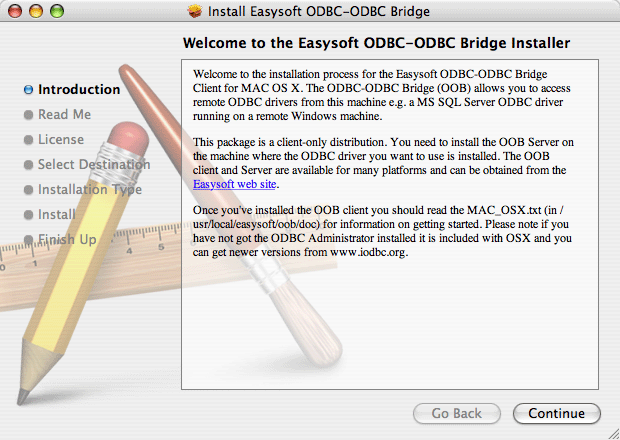
4. When you have read the introductory text, click Continue.
Follow the on screen instructions.
The OOB client only becomes functional when an application is linked with it through an ODBC driver manager. You can use iODBC's command line iodbctest application to test the OOB Client and execute SQL. For more information about using iodbctest to test the OOB Client, see Testing Data Sources.
The OOB Client documentation is installed in the /usr/local/easysoft/oob/doc directory. For information about using the Easysoft ODBC-ODBC Bridge on Mac OS X, read the file MAC_OSX.txt in this directory. Various tutorials are installed in subdirectories of this directory. Example ODBC applications are installed in the /usr/local/easysoft/oob/examples directory.
There are also many resources available at the Easysoft web site.
There is no automated way to remove the OOB Client on Mac OS X. However, if you want to remove the software manually, Mac OS X provides a way of listing of the files installed by the OOB Client package. To do this, use the lsbom command to examine the OOB Client package's Bill of Materials (.bom) file.
|
You do not need to remove the OOB Client before upgrading to a different version. |
To list the files installed by the OOB Client package
1. In Terminal, change directory to /Library/Receipts.
2. In this directory, look for a subdirectory with the same name as the OOB Client package file. For example, odbc-odbc-bridge-2.0.11-darwin-ppc.pkg.
3. Change directory to oob_client_package/Contents/Resources
4. In this directory, look for the .bom file for the OOB Client package. For example, odbc-odbc-bridge-2.0.11-darwin-ppc.bom.
5. To display a list of files installed by the OOB Client package into the /usr/local/easysoft directory, type:
6. To display a list of symbolic links created by the OOB Client package, type:
7. To display a list of directories created by the OOB Client package, type:
To remove the ODBC driver entry from odbcinst.ini
1. Log in as an administrator user.
2. Open ODBC Administrator in the /Applications/Utilities folder.
3. To remove the OOB Client ODBC driver entry from odbcinst.ini, in the Drivers tab, click Easysoft ODBC-ODBC Bridge in the list of drivers. Click Remove.Click OK when prompted.
If the Drivers tab is locked, the Remove button will be unavailable. To unlock the Drivers tab, click the lock icon, and then type an administrator password when prompted.
4. If you want to remove your OOB Client data sources, click OK when prompted.
© 1993 - 2024 Easysoft Limited. All rights reserved. Oracle® is a registered trademark of Oracle® Corporation and/or its affiliates. Other trademarks and registered trademarks appearing on easysoft.com are the property of their respective owners.


